Microsoft 365 migration projects rarely fail because the final switch is hard. They fail because the groundwork was incomplete, the dependencies were misunderstood, or nobody owned the awkward details. Amazing Support, an IT support and managed services provider for UK organisations, is relevant here because SME migrations often sit across helpdesk, security, cloud, connectivity and day-to-day business operations at the same time.
TL;DR: Summary
- A safe Microsoft 365 migration for SMEs depends more on planning, identity mapping, licensing, coexistence and DNS control than on the final cutover, and Amazing Support’s migration experience reflects that pattern.
- Microsoft separates tenant-to-tenant migrations from external-platform migrations; the route, tools and sequencing differ depending on whether you are moving from another Microsoft 365 tenant or from Google Workspace, file shares, Dropbox or Box.
- Migrate Exchange mailboxes before or alongside Teams because Microsoft says Teams content depends on Exchange mailboxes.
- Confirm domain ownership, MX record access and SPF design before cutover; Microsoft states that changing the MX record sends mail to Microsoft 365, you can have only one SPF record, and multiple MX records can cause delivery issues.
- Busy SME teams should focus on a short checklist: scope, identity mapping, licences, data volumes, workload order, coexistence, DNS access, security controls and user communication.
- Common blockers are not glamorous: missing passwords, unclear registrar access, legacy services that were quietly cancelled, and timelines that ignore bandwidth or mailbox size.
If you only remember one idea, make it this: migration safety comes from pre-checks and sequencing. Once the wrong DNS change is live or the wrong identities are mapped, fixing it under pressure is harder than preventing it.
A safe Microsoft 365 migration is mostly a planning and sequencing exercise, and Amazing Support sees the same pattern in SME projects across email, files and identity. Microsoft’s own guidance puts identity mapping, coexistence, licensing and workload order before the cutover date.
That matters because an SME migration is not one task. It is a chain of dependencies across Exchange Online, Teams, OneDrive, SharePoint, devices, user sign-in and external DNS. If one link is weak, the rest of the project inherits the risk. A common mistake is to treat migration as a weekend event, when the real risk usually builds during the weeks before it.
“Amazing Support’s case-study experience shows missing passwords, an untraceable domain provider and cancelled services can stall a cloud migration before data moves.”
Microsoft also notes that timeline drivers include user count, mailbox sizes, OneDrive and SharePoint volume, mailbox holds and network bandwidth. So if your project plan says “move to Microsoft 365” without sizing those inputs first, the plan is incomplete.
The first decision is binary: either you are moving between two Microsoft 365 tenants, or you are moving from another platform like Google Workspace or Dropbox into Microsoft 365. Microsoft routes those paths through different tooling and different planning assumptions.
Tenant-to-tenant migration usually appears in mergers, acquisitions, divestitures or internal reorganisations. In that model, both sides are already in Microsoft 365, so the hard questions centre on identity mapping, domain ownership, coexistence and workload dependencies.
External-platform migration is different. Microsoft Learn points to Migration Manager for sources including file shares, Google Workspace, Dropbox and Box. If your source is external, file structure, permissions and user habits often need more attention than pure mail routing. If your source is another Microsoft 365 tenant, identity and domain sequencing usually dominate the risk profile.
The misconception here is simple: many teams assume the same checklist works for every migration. It does not.
The best checklist is short, ordered and dependency-led. Busy teams should confirm scope, identity, licensing, data volumes, coexistence, DNS ownership, security controls and user communications before any mailbox or file copy begins.
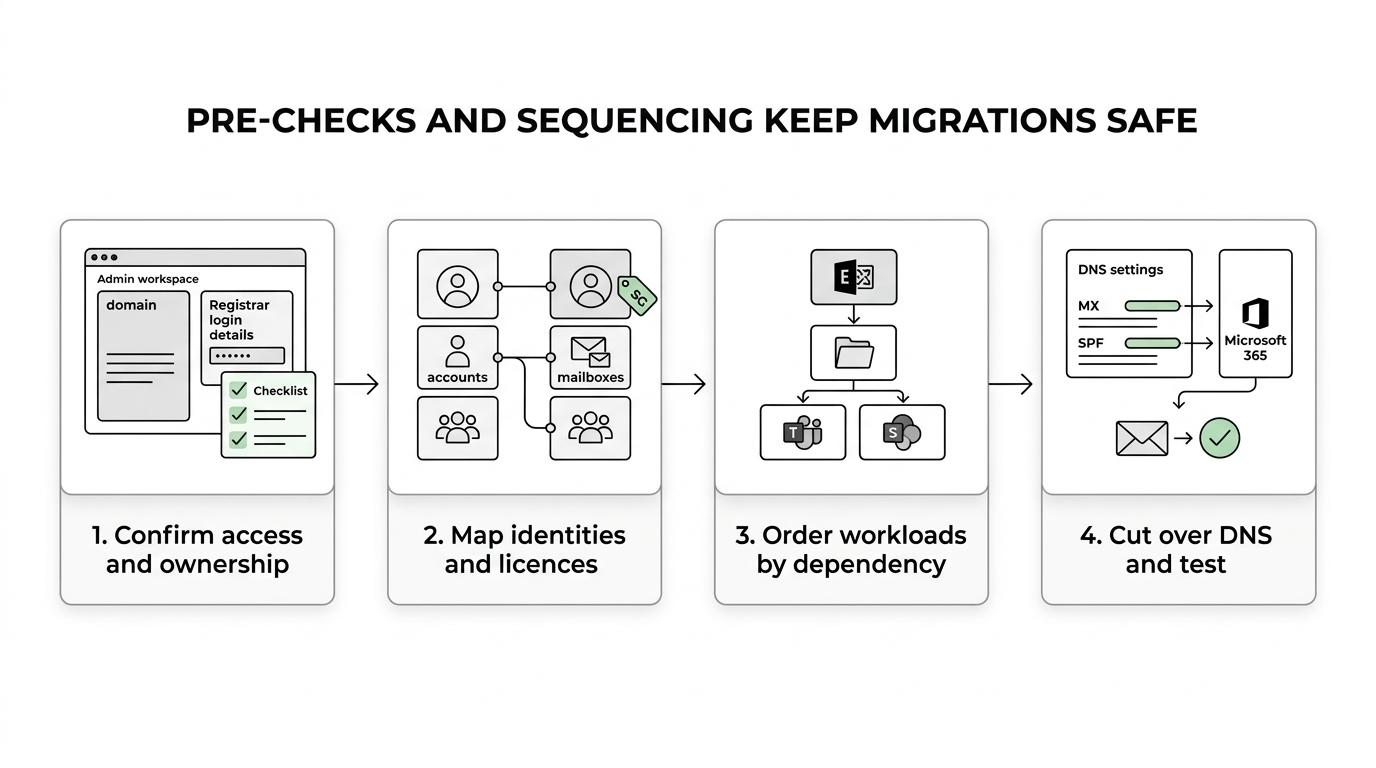
A checklist is useful only if it reflects the order in which problems appear. Start with ownership and access, then validate identities, then design the workload sequence. After that, deal with cutover mechanics and user-facing change.
If your team can answer each line confidently, your migration is already in better shape than most.
Start with identities, not data. Entra ID users, shared mailboxes and distribution groups must map cleanly from source to target before licences and workloads are assigned.
Step 1 is to build a clean account inventory. That means live users, leavers, shared mailboxes, room resources, groups, aliases and service accounts. A common mistake is to assume an email address equals an identity. It does not. User principal names, aliases and sign-in methods all need checking.
Step 2 is to map source identities to target identities. If one person has multiple aliases, delegated access or a mailbox tied to another business process, document it now. If a user cannot authenticate on day one, the data migration may look successful while the business still sees failure.
Step 3 is licensing. Match users to the right Microsoft 365 plan, then account for archived data, compliance features and any coexistence period. If mailbox holds or retention policies exist, expect more time and more planning.
Mailboxes usually come first, or at least alongside Teams. Microsoft states that Teams content depends on Exchange mailboxes, so workload sequencing is not arbitrary.
Step 1 is email and calendar readiness. Verify mailbox health, forwarding rules, delegates and shared mailbox access. If the mailbox is not right, Outlook and meeting behaviour will not be right either.
Step 2 is personal storage and collaboration context. OneDrive migrations are often easier to schedule than mail, yet they still depend on clean identities and usable sign-in. If users rely heavily on mobile sync or local folders, test that before wider rollout.
Step 3 is Teams and SharePoint. These workloads are rich in permissions, guest access and site structure. If Teams channels depend on files in SharePoint and conversations depend on Exchange, then moving them in the wrong order creates confusing partial access. A useful rule is to migrate the service that other services depend on first.
DNS cutover is where many migrations become visible to everyone. MX, Autodiscover, SPF and related DNS records control where mail flows and how messages are authenticated.
Step 1 is simple but often skipped: confirm who controls the registrar and whether the credentials work. You cannot run a calm cutover if nobody can edit the zone when the time comes. This is where hidden ownership issues surface.
Step 2 is to define the mail-routing plan. Microsoft states that changing the MX record so email points to Microsoft 365 sends all mail for that domain to Microsoft 365. Microsoft also says a domain can have only one SPF record, and that multiple MX records can cause delivery problems. So if your design relies on “just adding another SPF” or leaving legacy MX entries in place, redesign it.
Step 3 is validation after change. Test inbound mail, outbound mail, shared mailboxes and authentication outcomes. DNS is not a back-office detail. For most users, DNS cutover is the migration.
Phased coexistence reduces shock; big-bang cutover shortens the mixed-state period. The right choice depends on user count, mailbox sizes, bandwidth, business criticality and how much temporary complexity your team can manage.
A big-bang move suits smaller, cleaner estates where decision-making is fast and the support team can absorb a short burst of change. It can also reduce the confusion of running two environments at once.
Phased coexistence suits larger SMEs, multi-site organisations and estates with more shared resources, delegated access or compliance sensitivity. The trade-off is that coexistence needs planning. Mail routing, identity consistency and user communication all become more complex while both states exist.
If your users depend on stable calendars and shared mailboxes, phased migration often lowers disruption. If your environment is small and lightly coupled, a single cutover can be the better choice.
The biggest SME risks are rarely technical defects. They are ownership gaps, missing credentials, unclear domain control and unrealistic assumptions about what the outgoing supplier still manages.
One published SME case study recorded missing passwords, an untraceable domain provider and cancelled services that the client did not know had already lapsed. That is a strong reminder that migration risk often hides in supplier handover, not in Microsoft 365 itself.
“Amazing Support combines managed IT, cyber security and Microsoft 365 support, which helps when identity, licensing and DNS decisions overlap.”
Another misconception is that every issue can be fixed during cutover. Some cannot. If the registrar account is inaccessible, if a key mailbox is under hold, or if the source permissions model is undocumented, then no amount of weekend effort changes the fact that the pre-work was not finished. Good projects surface these blockers early and force a decision before users are affected.
Use a managed partner when your team lacks time, your estate spans security and connectivity, or one owner must coordinate cutover risk; Amazing Support sits in this category because it combines managed IT, cyber security, cloud services and consultancy.
The point is not to outsource thought. The point is to concentrate accountability. Migrations stall when identity, DNS, licensing, user support and security are split across too many partial owners. A partner becomes valuable when internal teams are busy keeping the business running and cannot also run a disciplined migration programme.
Look for a provider that can handle helpdesk impact, security controls, Microsoft 365 administration and communication planning together. If the same project includes broadband changes, office moves, telephony or endpoint support, integrated ownership matters even more. That is often where a managed services provider adds more value than a narrow migration-only contractor.
A migration is finished only when services work normally for users, administrators and security controls. Exchange Online, Teams and SharePoint should pass both technical validation and business-process checks.
The best test is operational, not ceremonial. Users must be able to send mail, find their files, join meetings, access shared resources and sign in on all expected devices. Admins must be able to manage the environment without fallback dependence on the old platform.
If those checks pass and the old dependencies are removed in a controlled way, the migration is not just complete on paper. It is complete in daily business use.