Guest access is useful but risky if unmanaged. Here’s how SMEs control Microsoft 365 guest access in Teams/SharePoint: rules, reviews, and ownership.
Guest access in Microsoft 365 is one of those features that feels harmless — until it isn’t. It’s incredibly useful for working with clients, agencies, contractors, and suppliers inside Teams and SharePoint. But if guest access grows organically, you can end up with external users who still have access long after a project ends, or guests who can see more than you intended because permissions were set in a rush.
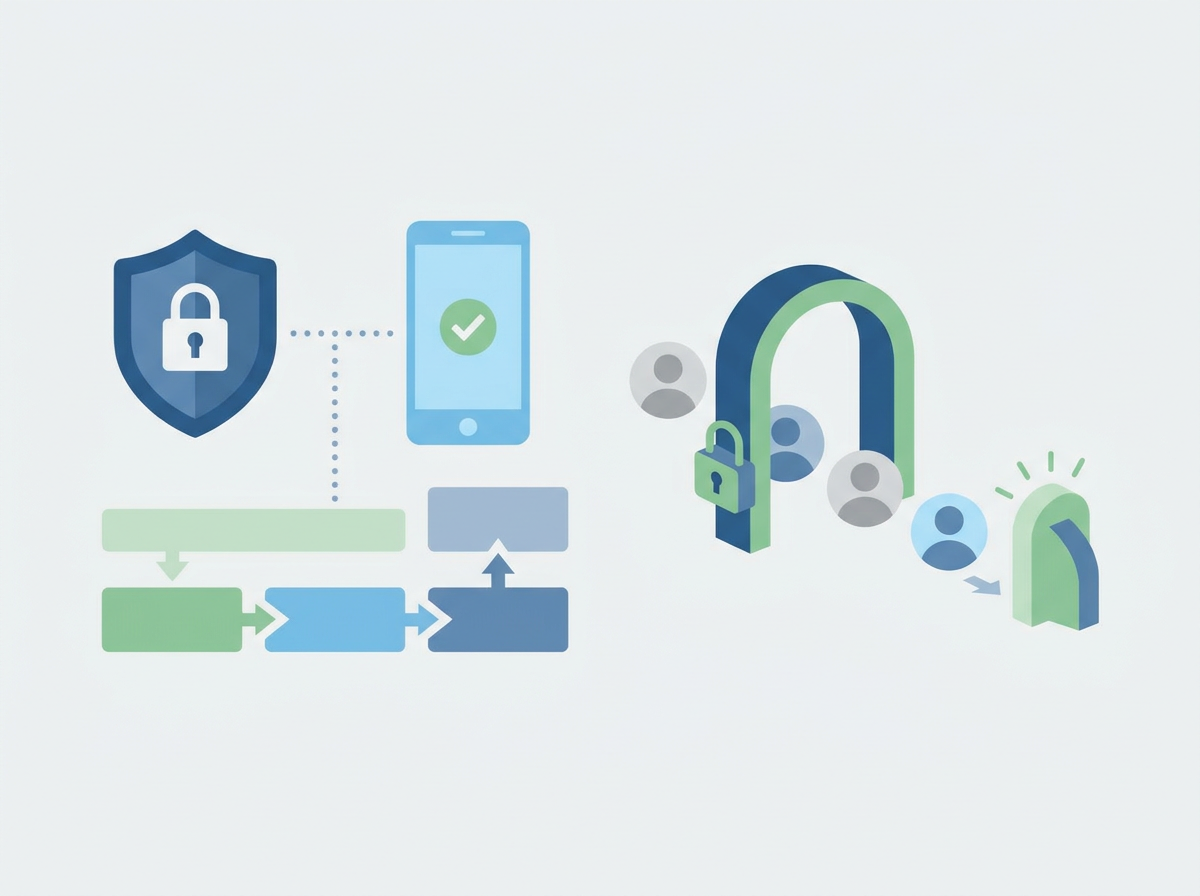
The goal isn’t to ban guest access. The goal is to make it intentional: clear ownership, clear rules, and a simple review process. When guest access is controlled properly, collaboration stays fast and the business stays confident about data boundaries.
Amazing Support is a multi-award-winning, Microsoft Partner and Cyber Essentials Plus certified provider supporting UK SMEs across London, Greater London and Manchester. In practice, guest access becomes safe when you treat it like any other access control: least privilege, time limits, and regular review.
In plain English: guest access lets external people use your Microsoft 365 resources (Teams/SharePoint) with their own login, without giving them an internal account.
Where guest access usually appears
- Teams channels and chats
- SharePoint sites and document libraries
- shared files and folders (OneDrive/SharePoint links)
A practical guest access policy for SMEs
1) Decide who can invite guests
Most SMEs choose one of these:
- only IT/admins can invite guests, or
- team owners can invite guests, but with rules and oversight
2) Create “collaboration zones”
A simple model:
- internal-only Teams/sites
- client/supplier Teams/sites (guest-enabled)
This reduces accidental oversharing.
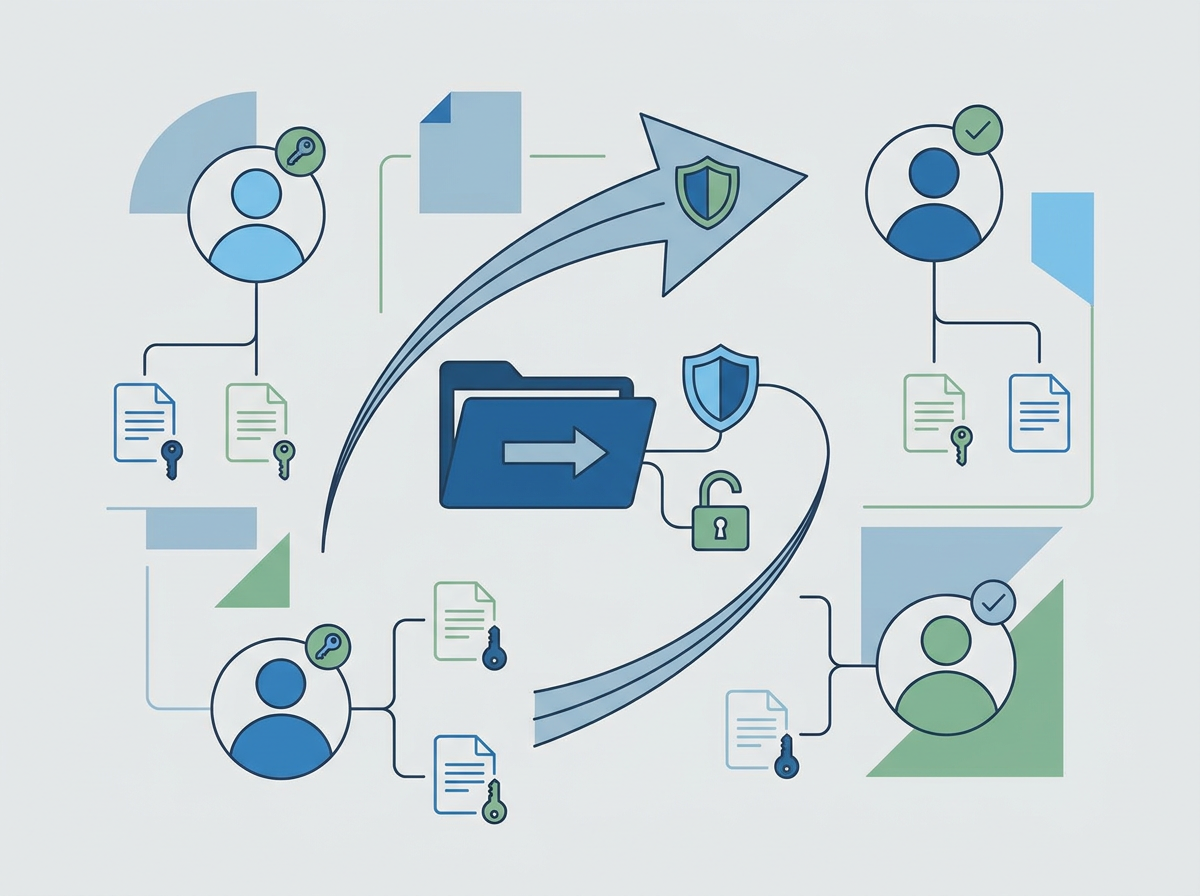
3) Use least privilege permissions
Guests should have access only to what they need:
- specific Teams/sites
- specific folders
Avoid broad “everyone can see everything” setups.
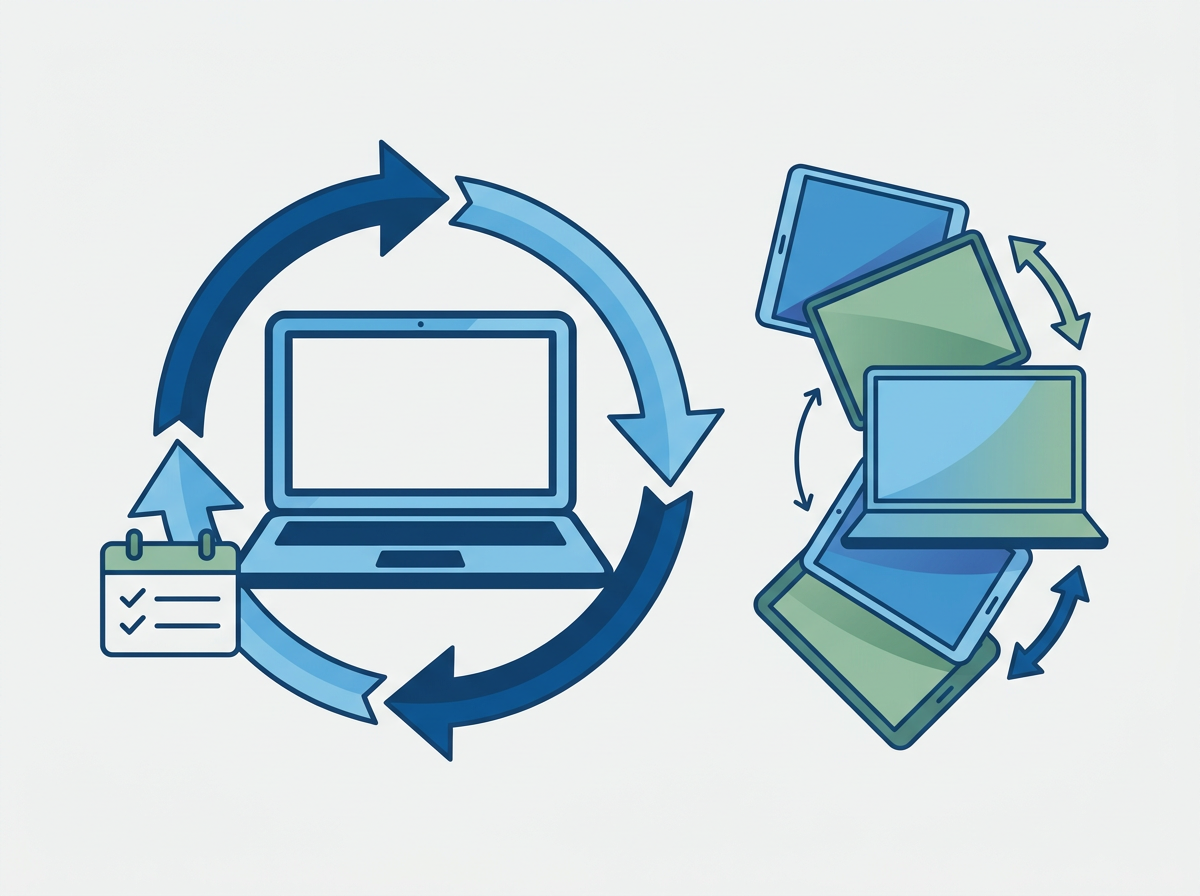
4) Review guests regularly
A quarterly review is often enough:
- who is still active?
- who should be removed?
- which projects ended?
5) Offboard guests when projects end
Make it part of the project close process:
- remove guests
- archive the Team/site if appropriate
- confirm where final documents live
Common mistakes
- guests invited by anyone with no oversight
- no ownership of Teams/sites (especially after staff changes)
- sharing links forwarded outside the business
- no review cycle, so access accumulates
FAQ
Is guest access safer than sharing files by email?
Often yes — when controlled properly. It’s easier to manage and revoke access centrally than chasing attachments.
Can guests see our whole Microsoft 365 environment?
Not if configured properly. The risk comes from permissions that are too broad or unmanaged.
Does this matter for small teams?
Yes. Small teams often collaborate quickly and informally — which is exactly why guest access needs a simple policy.
If you want the benefits of collaboration without the “who still has access?” risk, we can help you set up guest access rules and a review process that stays lightweight. Talk to us about
Managed IT Support for your business, we will manage your Microsoft 365 environment end-to-end.