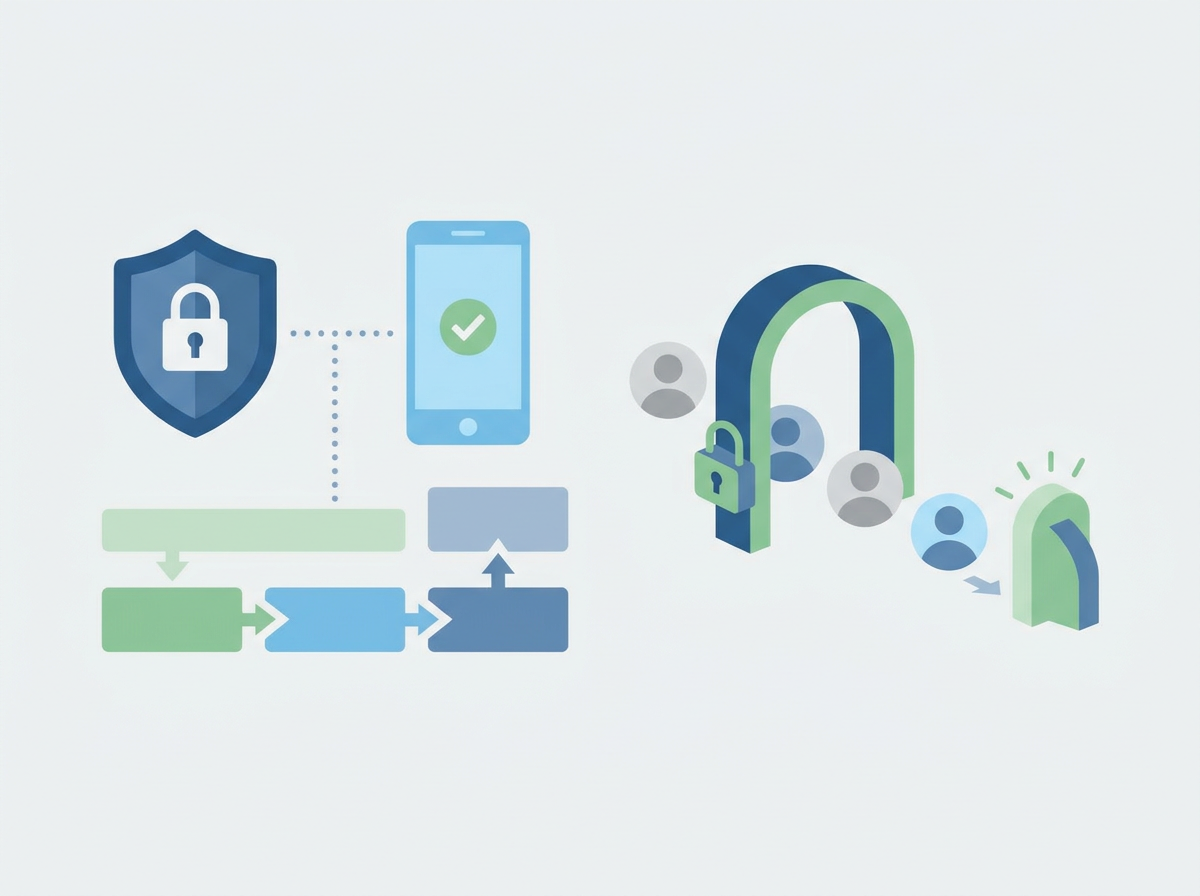
A password manager reduces risk and saves time, but only if staff adopt it. Here’s a practical SME rollout plan, including shared access and policies.
Password Managers for SMEs: How to Roll One Out Without Chaos (and Actually Get Adoption)
Most SMEs know passwords are a problem, but they underestimate how much time and risk is tied up in “password life.” People reuse passwords because they’re busy. They store credentials in browsers because it’s convenient. Shared accounts exist because it’s easier than managing access properly. And when someone leaves, nobody is fully sure what they had access to. A password manager solves a lot of this — but only if it’s rolled out in a way that makes life easier, not harder.
The biggest mistake is treating a password manager like a software install. It’s actually a behaviour change. You’re asking people to stop doing what they’ve always done and trust a new workflow. The rollout needs to be simple, supported, and focused on the benefits staff will feel immediately: fewer lockouts, faster logins, and less “who has the password?” drama.
Amazing Support is a multi-award-winning, Microsoft Partner and Cyber Essentials Plus certified provider supporting UK SMEs across London, Greater London and Manchester. In practice, adoption improves dramatically when SMEs start with the highest-friction areas (shared credentials and key systems) and make the first week feel like a win.
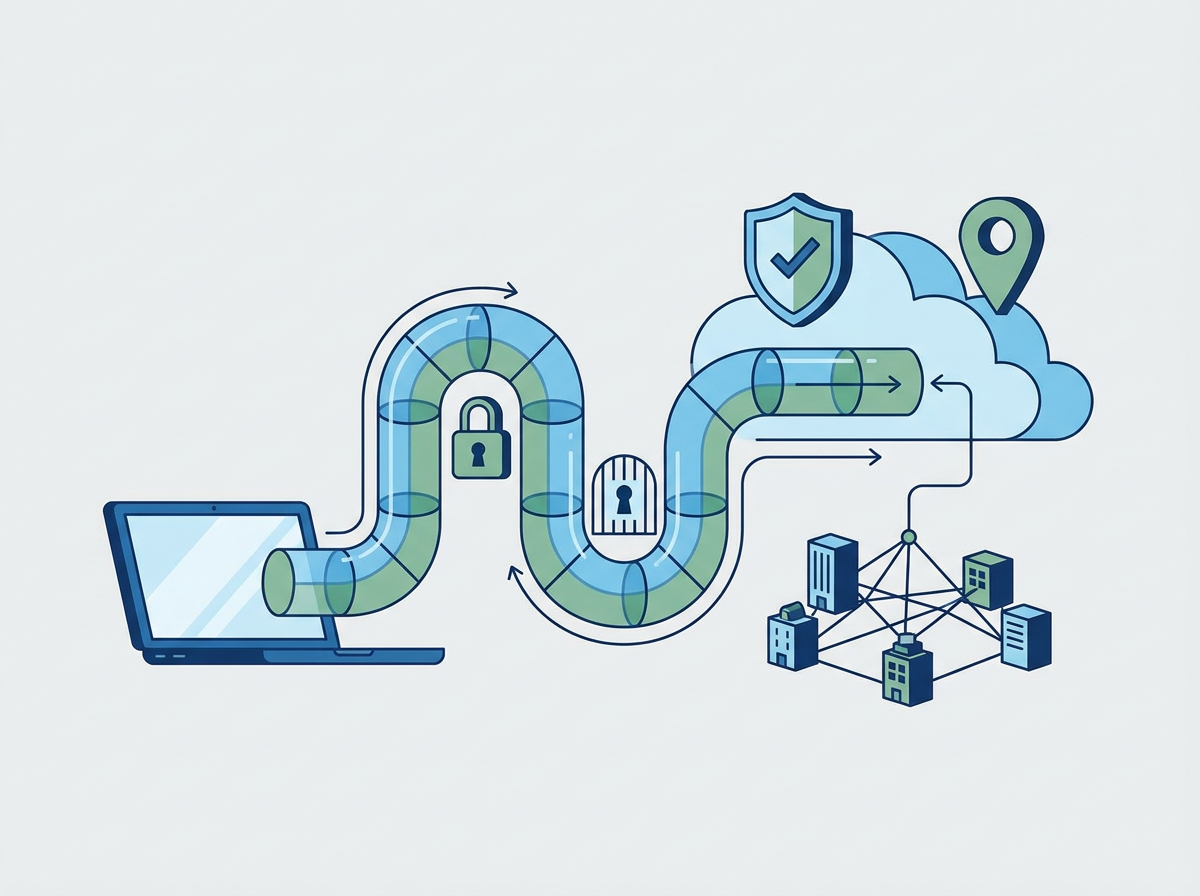
In plain English: a password manager is a secure vault that stores and shares credentials safely, so staff don’t reuse passwords or keep them in insecure places.
What a password manager fixes (quickly)
- password reuse and weak passwords
- shared credentials stored in spreadsheets or emails
- leavers risk (access can be removed cleanly)
- time wasted on resets and “where’s the login?”
- lack of visibility into who has access to what
A rollout plan that works for SMEs
1) Start with leadership and key systems
If directors and finance adopt it, the rest of the business follows faster.
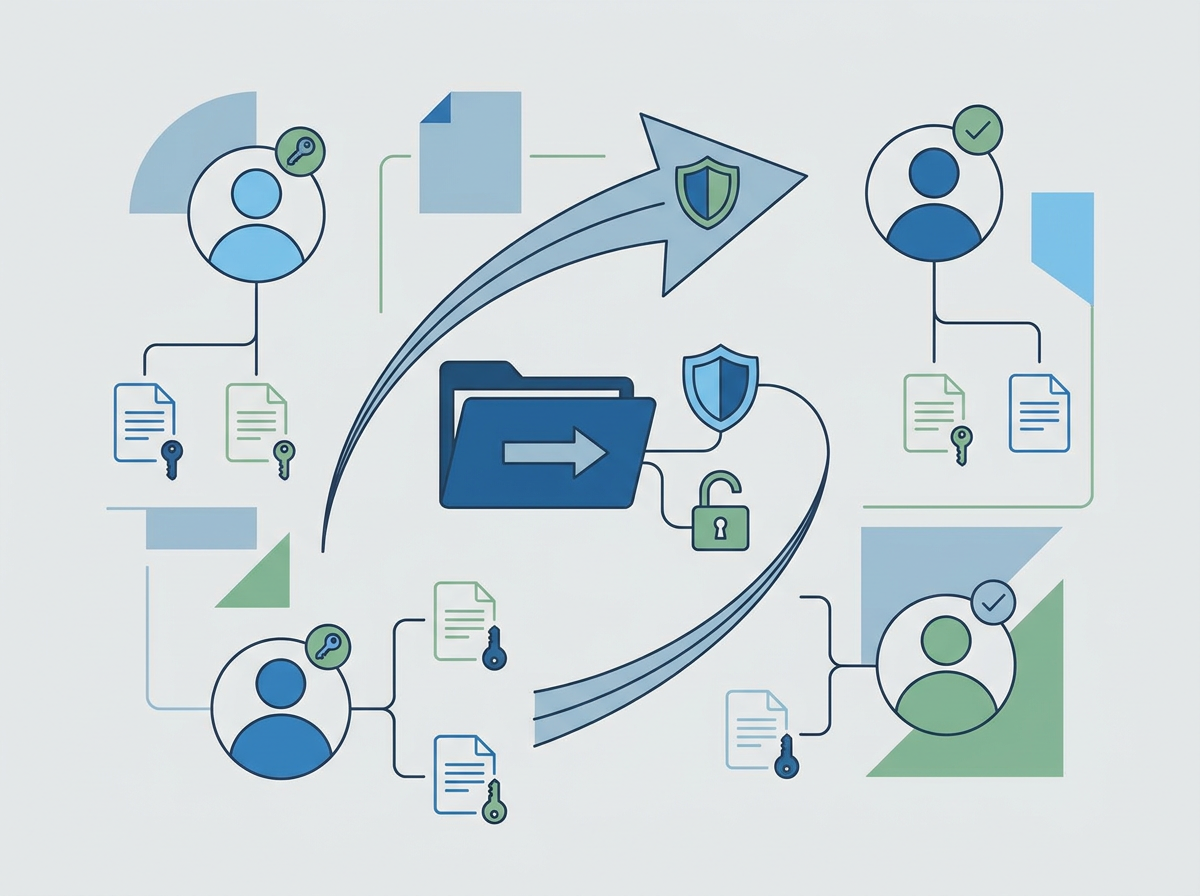
2) Migrate shared credentials first
Typical shared items:
- domain registrar
- hosting
- finance platforms
- key supplier portals
- Wi‑Fi/admin logins (where appropriate)
3) Define simple rules
Examples:
- no passwords in email or chat
- no shared accounts unless there’s a reason
- use the vault for supplier logins
- MFA enabled on the vault for everyone
4) Make it easy on day one
- provide a short setup guide
- support staff through first logins
- set expectations for browser password storage
5) Plan for leavers and role changes
Use role-based access to shared credentials so changes are clean.
Common mistakes
- rolling it out without migrating shared credentials (so nobody feels the benefit)
- allowing exceptions that become the norm
- not enabling MFA on the vault
- not training staff on how to share access properly
- keeping old password spreadsheets “just in case”
FAQ
Isn’t a password manager a single point of failure?
It can be if unmanaged. With MFA, strong admin controls, and good processes, it’s far safer than scattered passwords.
Do we still need MFA if we have a password manager?
Yes. MFA reduces the impact of stolen credentials and protects the vault itself.
Does this help with Cyber Essentials Plus?
Yes. It supports stronger access control and reduces weak password practices.
If you want to reduce password risk and support friction quickly, we can help you roll out a password manager for your
IT management with a plan that actually gets adoption.